Getting Started with 2alo
Create your 2alo account and set up end-to-end encryption properly so you can restore your chats when switching devices.
1. Register
Create your account in the 2alo.org sign-up flow:
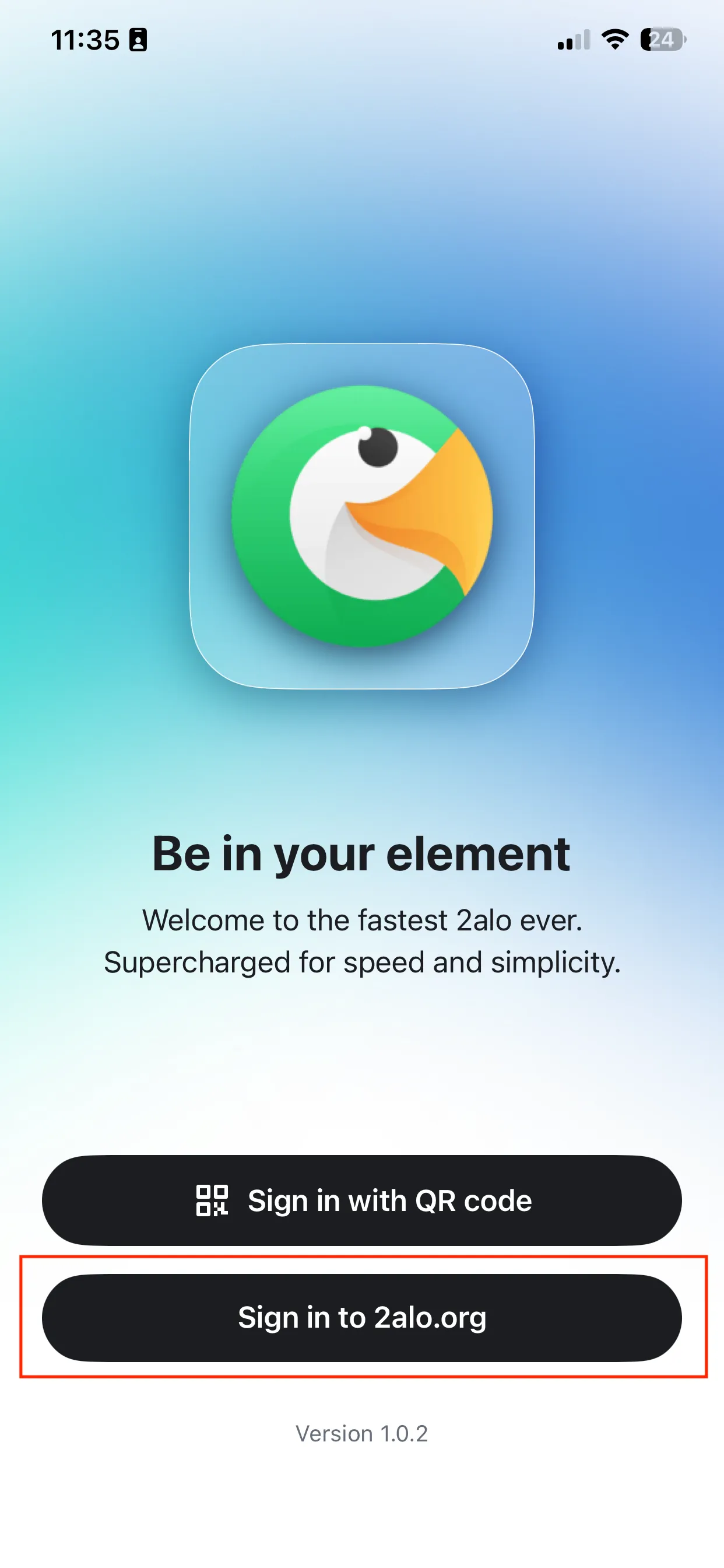
1. Welcome screen
On the welcome screen, tap "Sign in to 2alo.org".
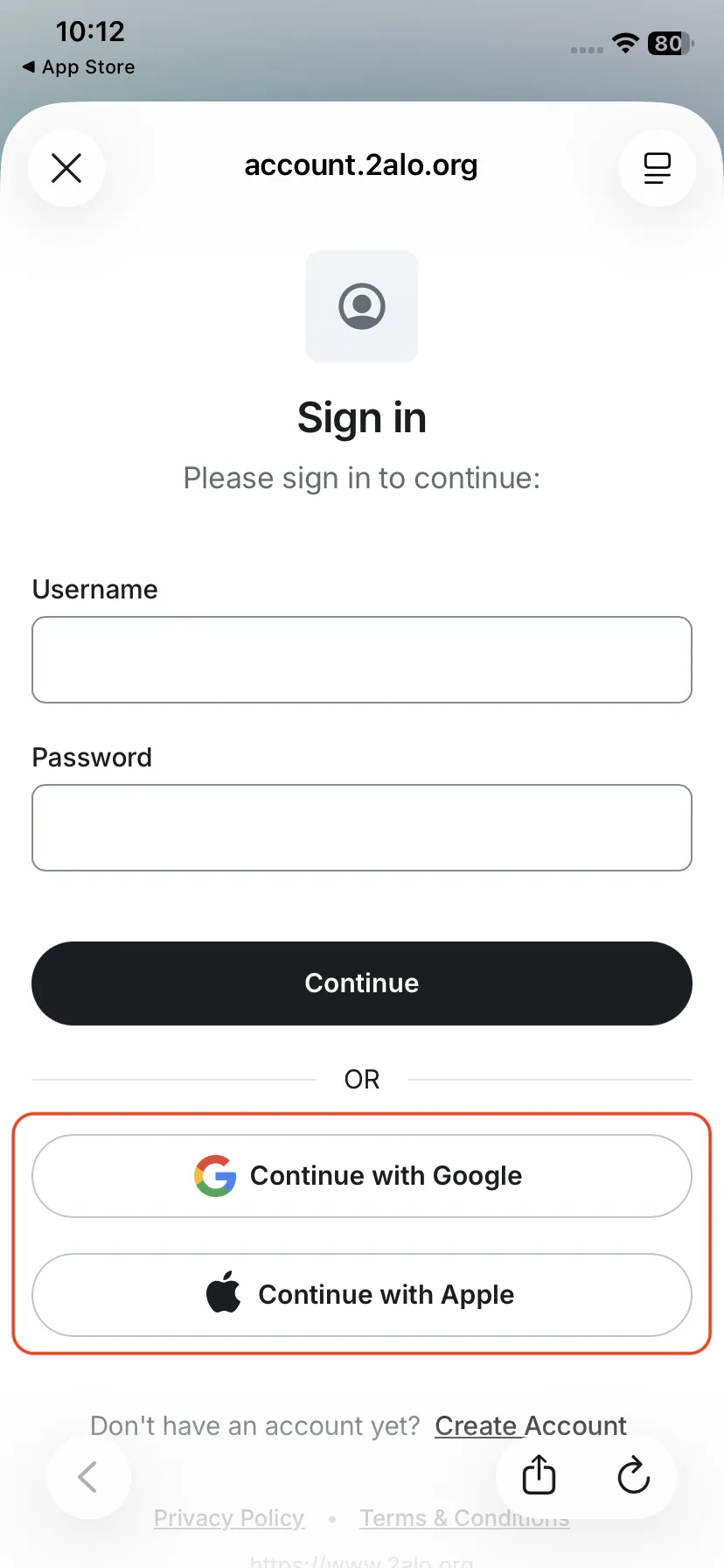
2. Sign up with Google or Apple
On the sign-in screen, you can register quickly with your Google or Apple account by tapping "Continue with Google" or "Continue with Apple".
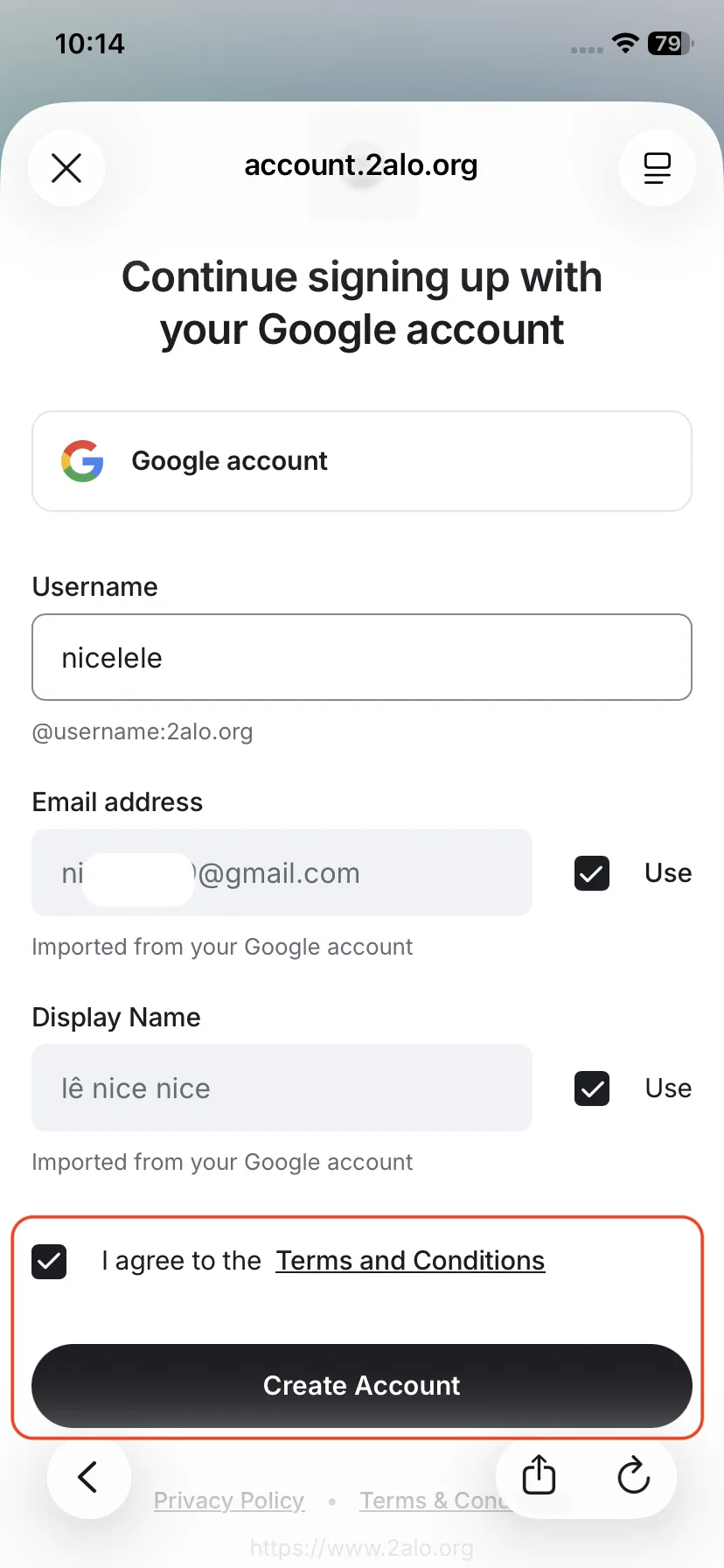
3. Complete registration
Continue with Google or Apple, enter your Username (your 2alo username), review the details, accept Terms and Conditions, then tap "Create Account".
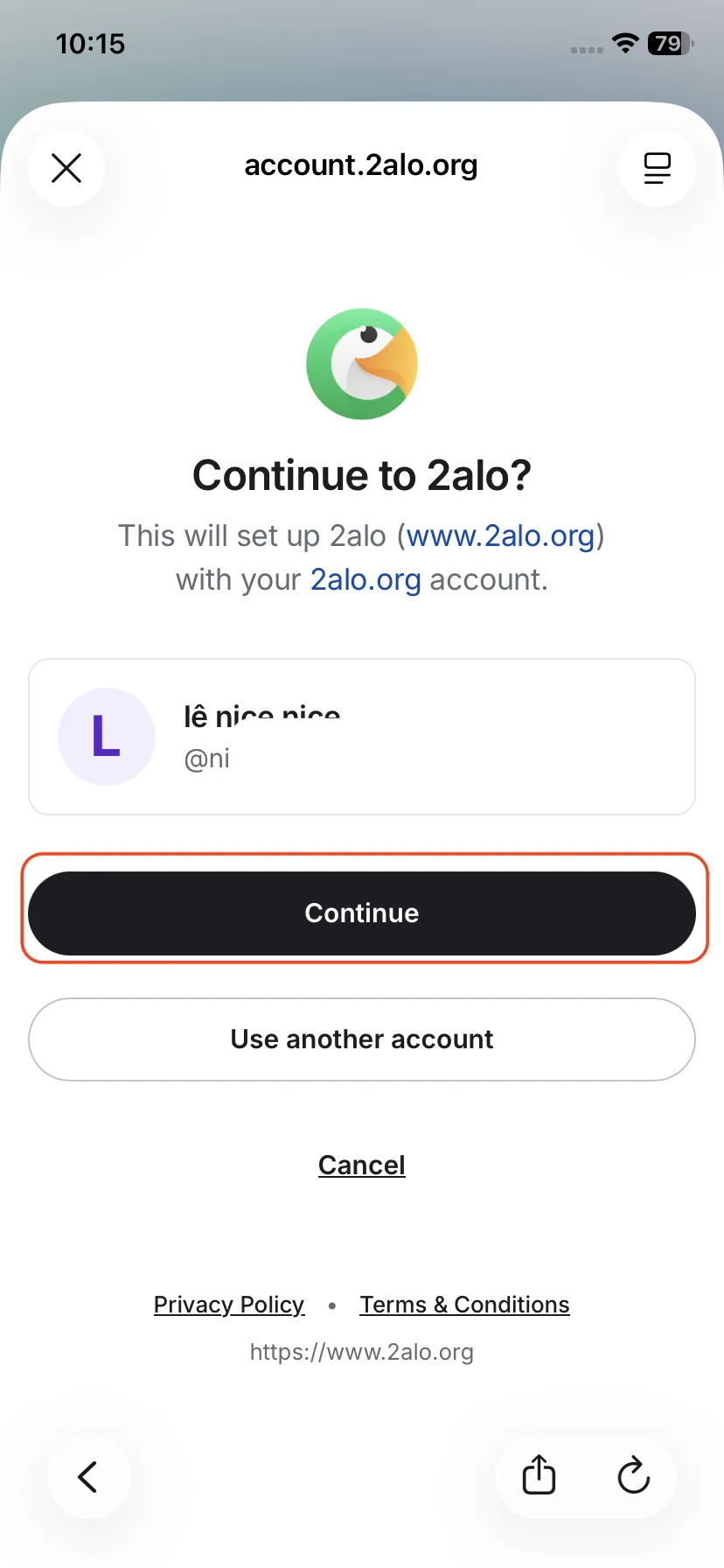
4. Sign in to 2alo
After creating your account, you will see your account details. Tap "Continue" to sign in with the account you just created.
2. Create and Back Up Recovery Key
Next, set up message encryption and save your Recovery Key somewhere safe:
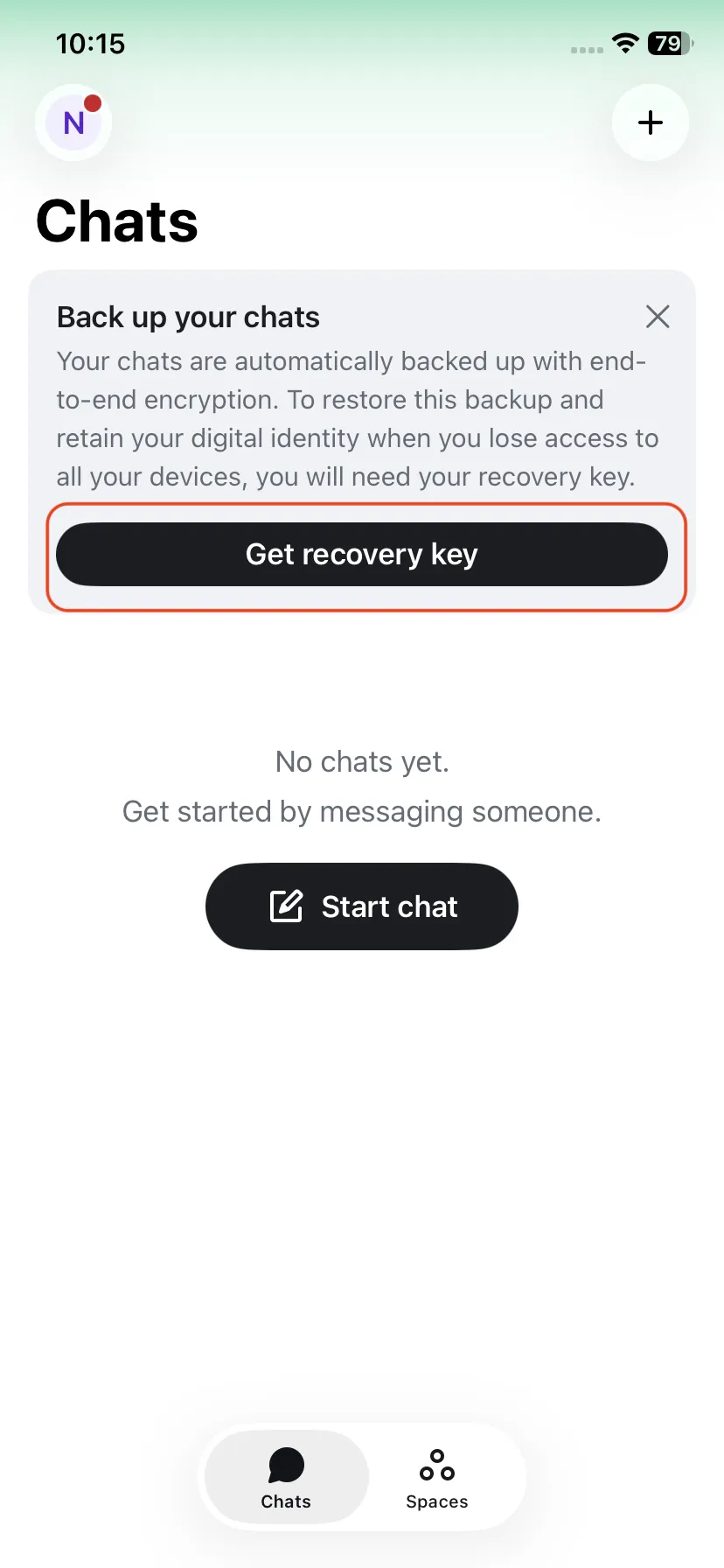
1. Start the Recovery Key flow
In Chats, you may see a "Back up your chats" card. Tap it to open "Get recovery key".
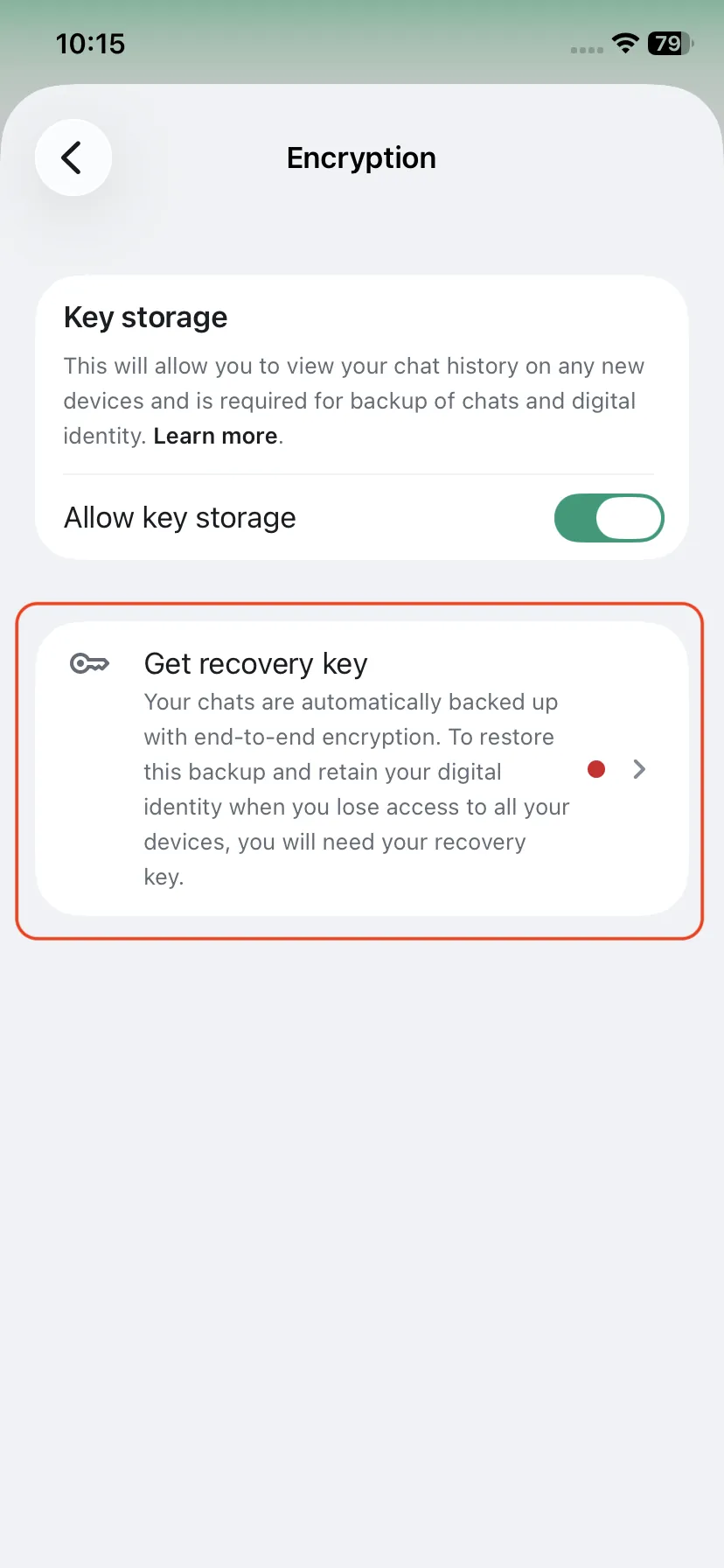
2. Open Encryption
Go to Encryption, enable key storage if available, then tap "Get recovery key".
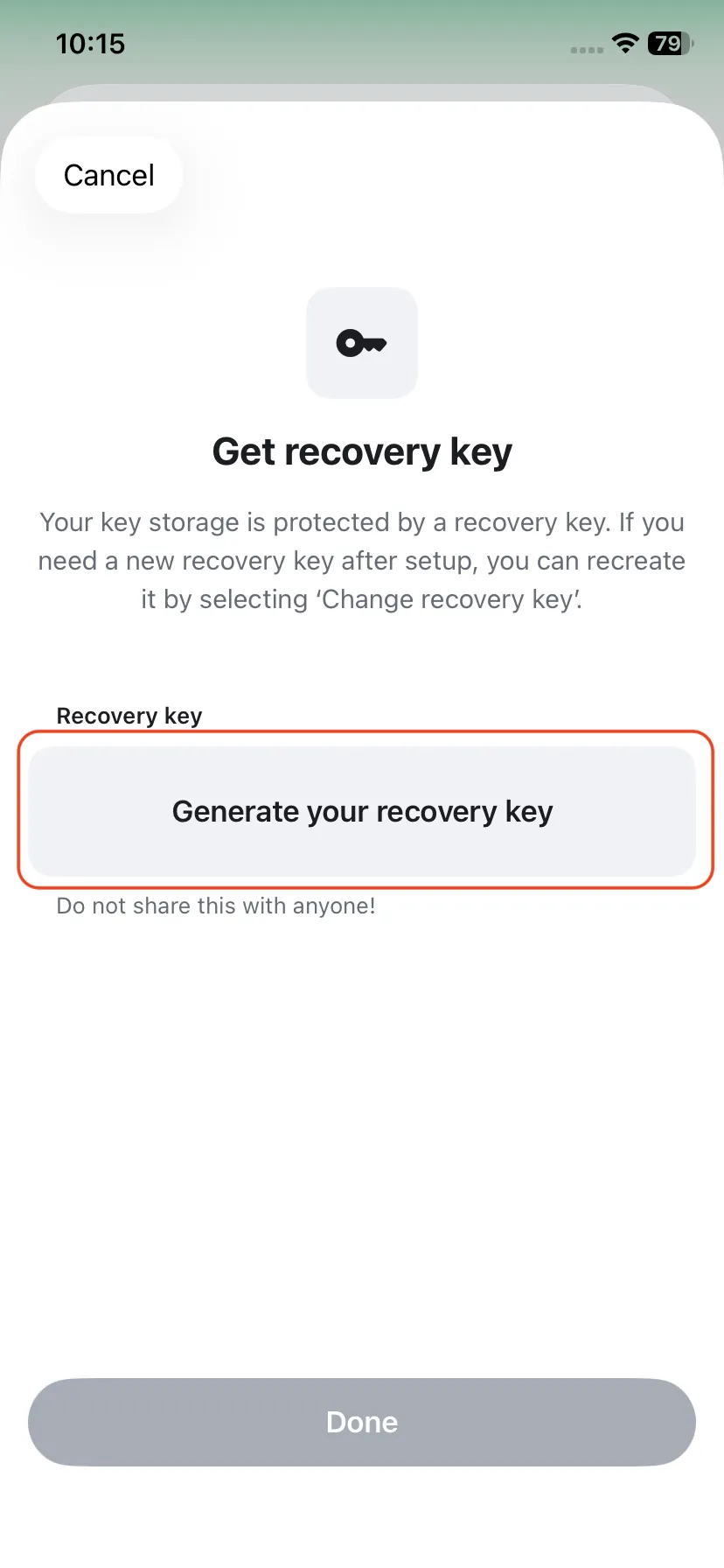
3. Generate a Recovery Key
Tap "Generate your recovery key" to create your key.
4. View your key
You will see your Recovery Key. Tap to copy it if needed.
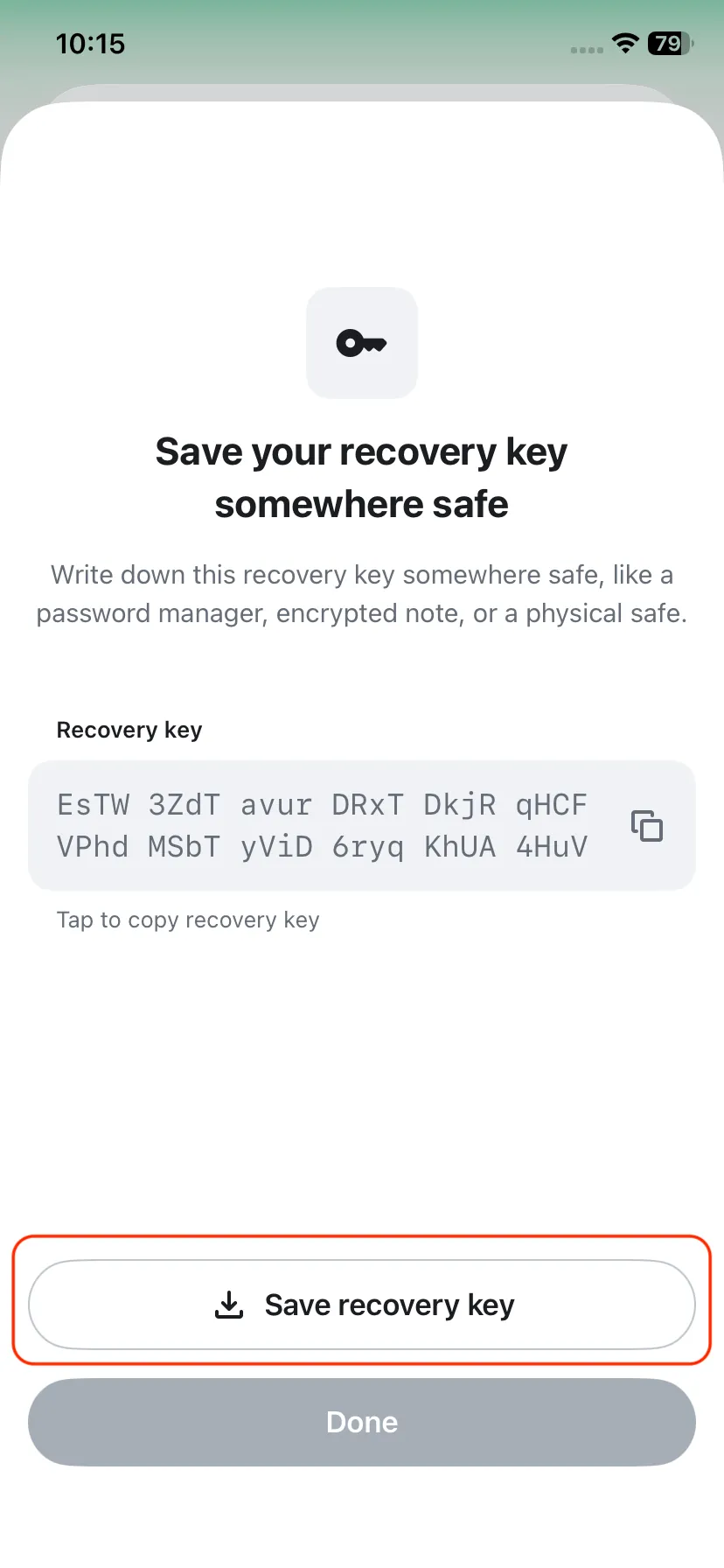
5. Back up your key safely
Save it in a safe place (for example: a password manager, an encrypted note, or offline storage).
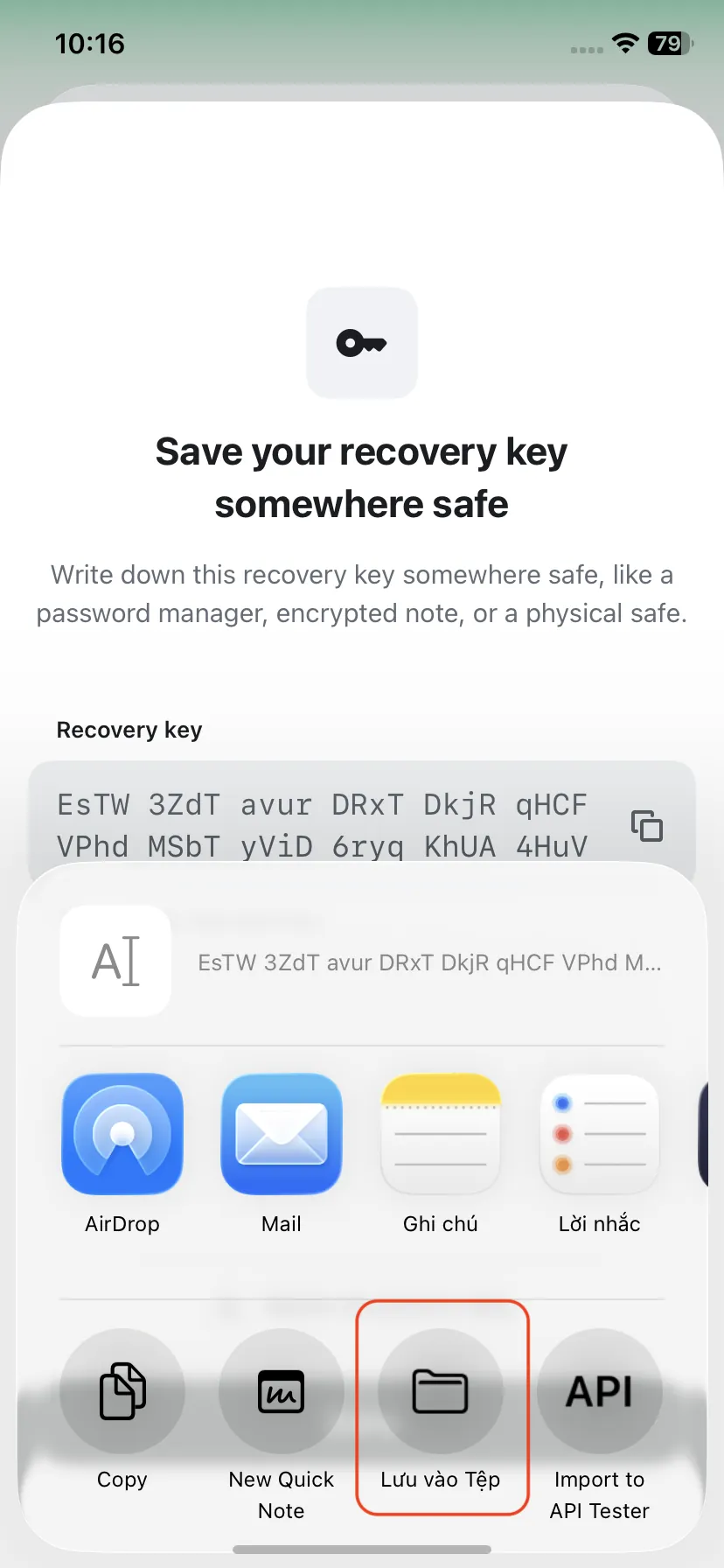
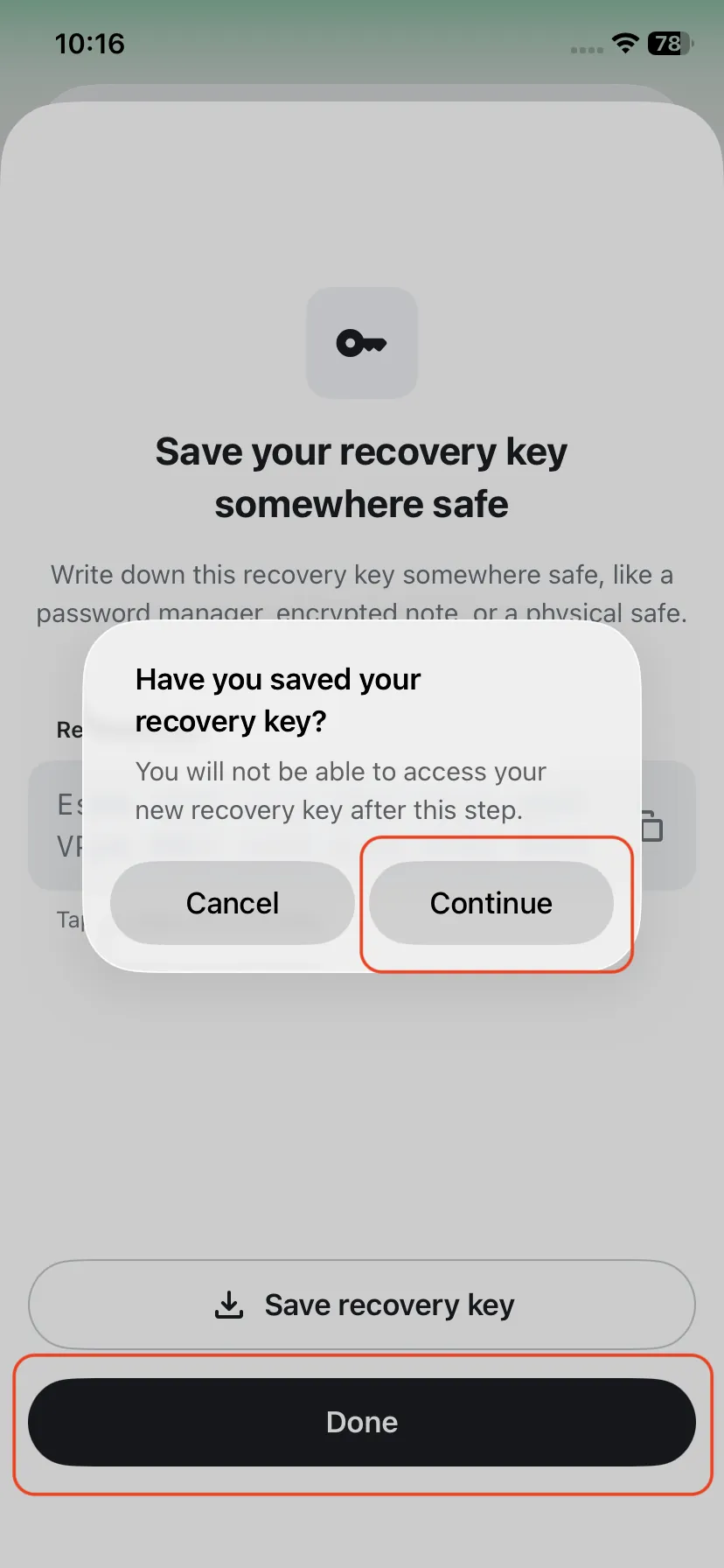
6. Confirm you saved it
After saving the key somewhere safe, tap "Done", then tap "Continue".
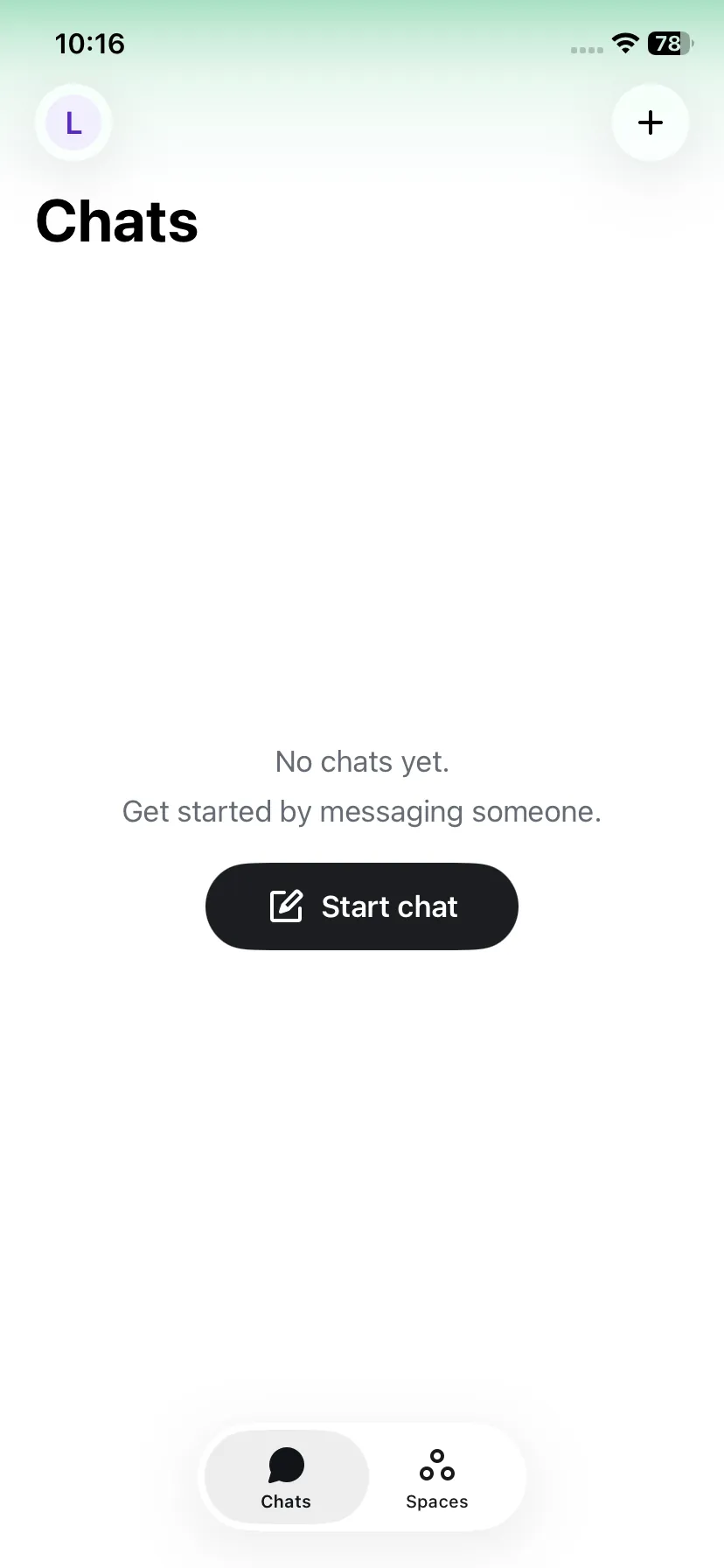
3. Start Chatting
On the Chats screen, tap "Start chat" or the + button in the top-right to find people or start a group.
1. Start messaging
On the Chats screen, tap "Start chat" or the + button in the top-right to find people or create a group.
4. View and Copy Your Username
To share your username so others can connect with you:
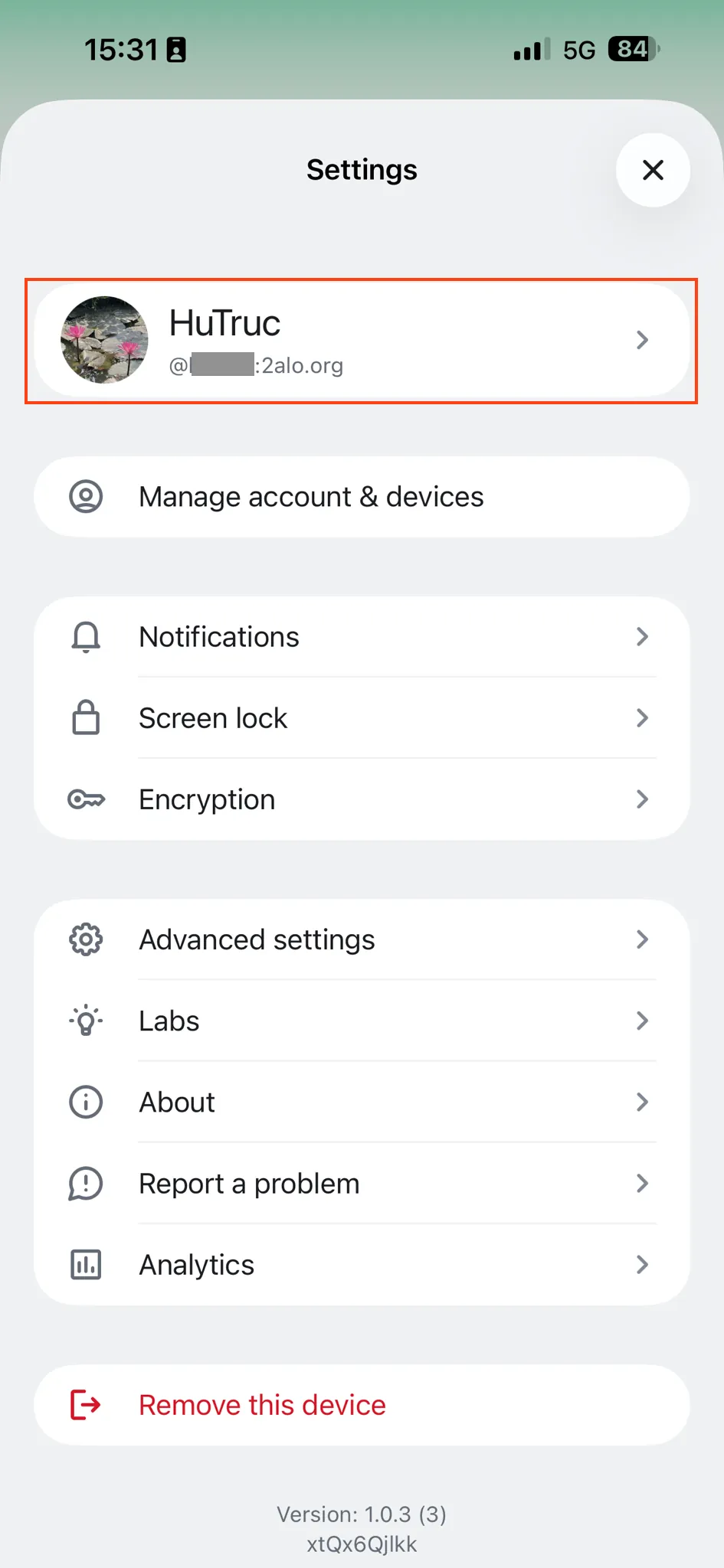
1. Open your profile
From the main screen, tap your avatar in the top-left corner.
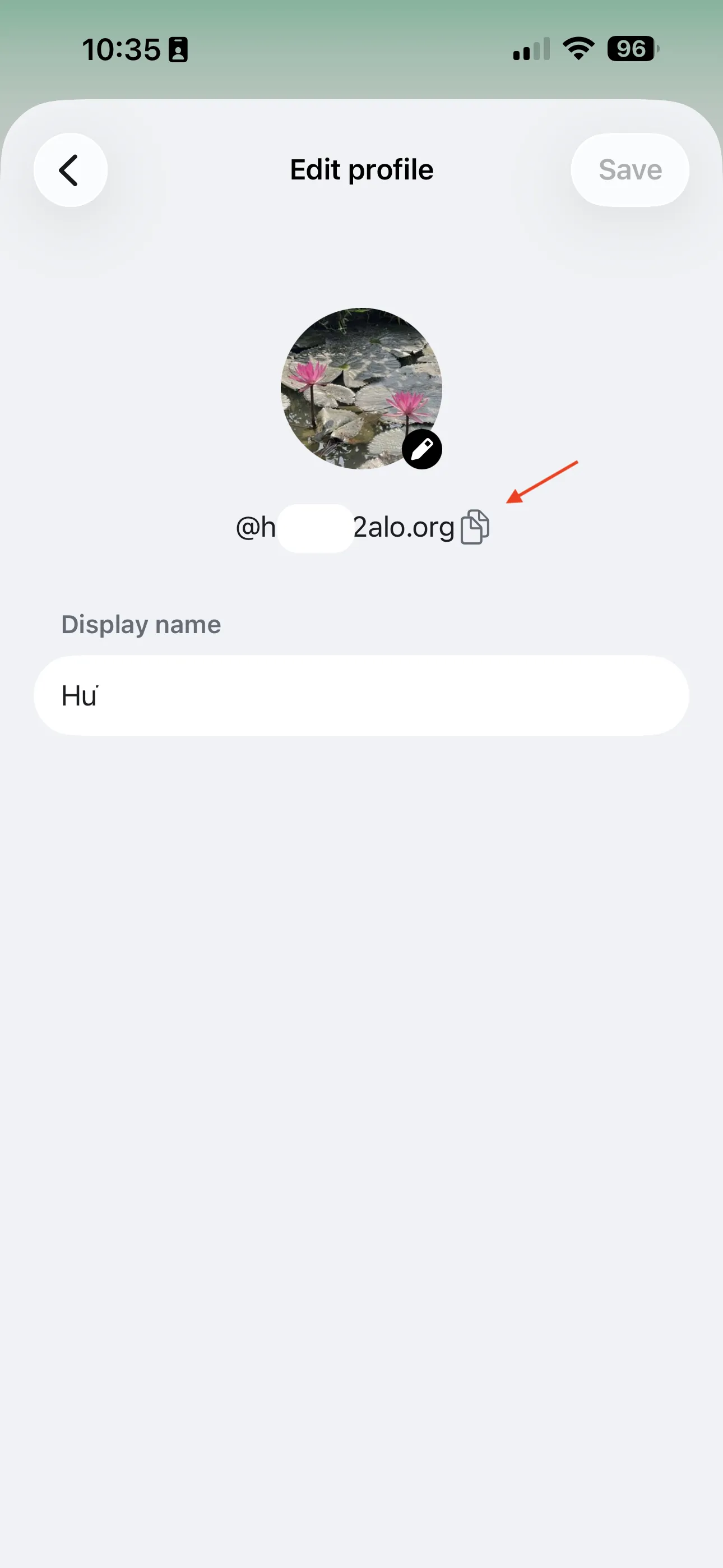
2. Copy your username
In profile, tap the copy icon next to your username to copy it.