Guide - Sign in to 2alo
Sign in to 2alo and verify your identity to set up end-to-end encryption. If you have your Recovery Key or another signed-in device, you can restore and read your old messages.
1. Start signing in
Begin from the welcome screen and continue to open the sign-in flow.
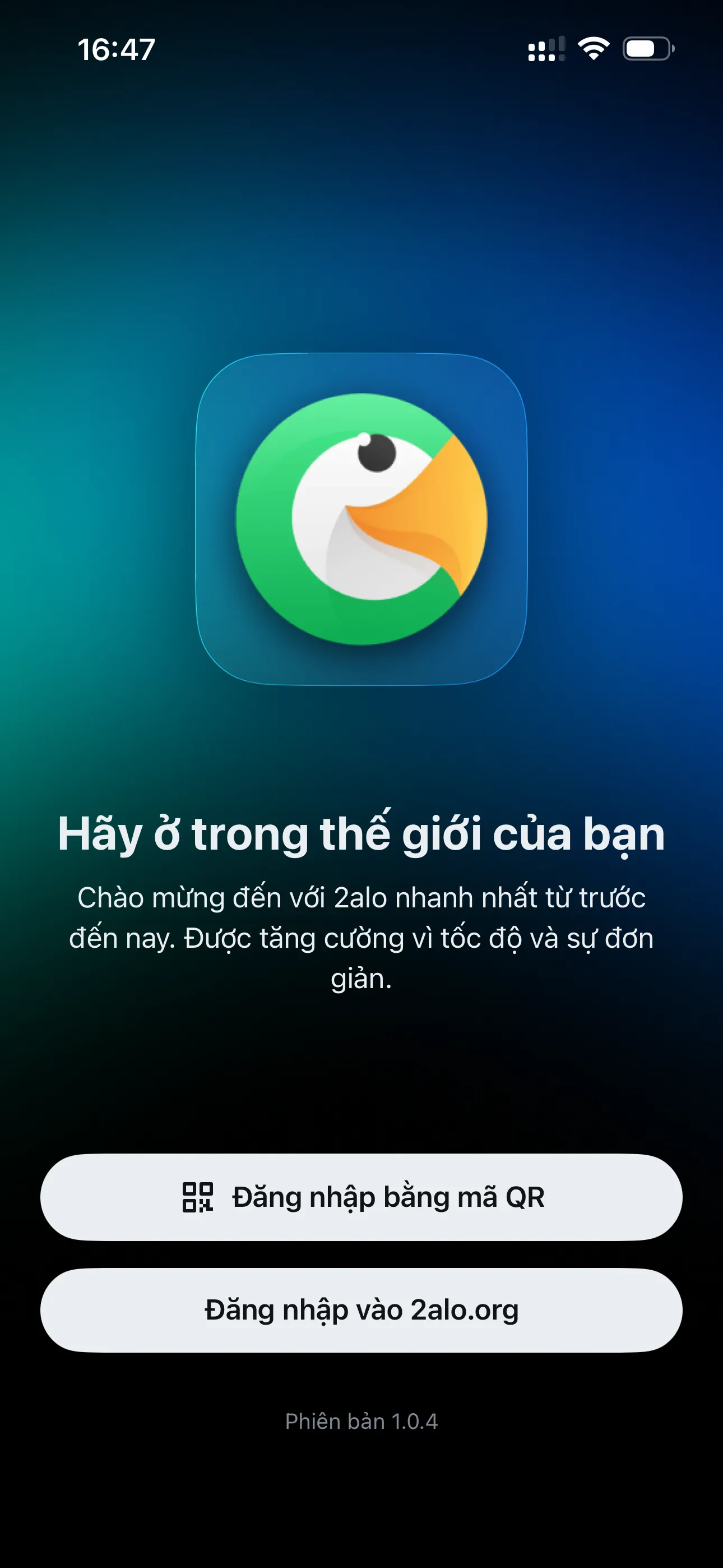
1.1. Welcome screen
On the welcome screen, tap "Sign in to 2alo.org".
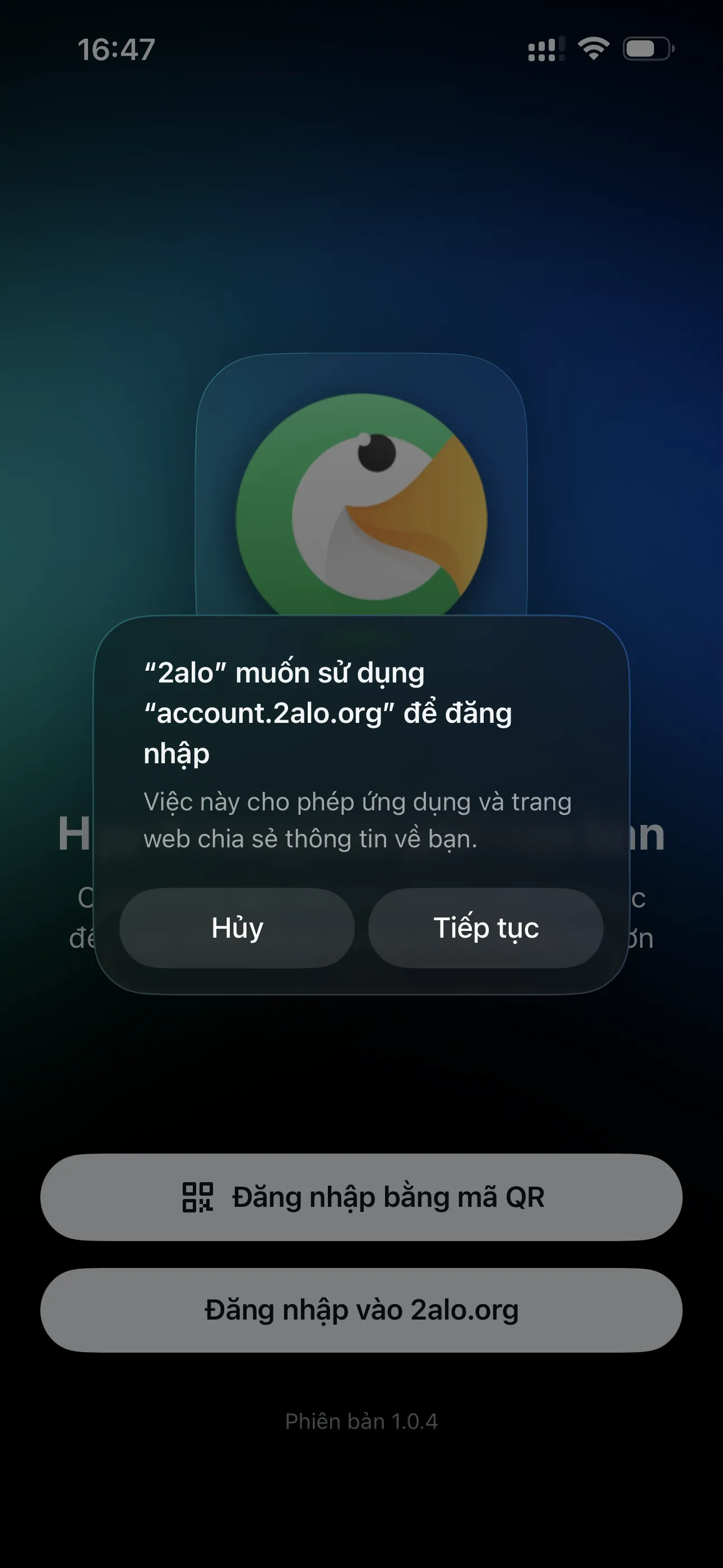
1.2. Select Continue
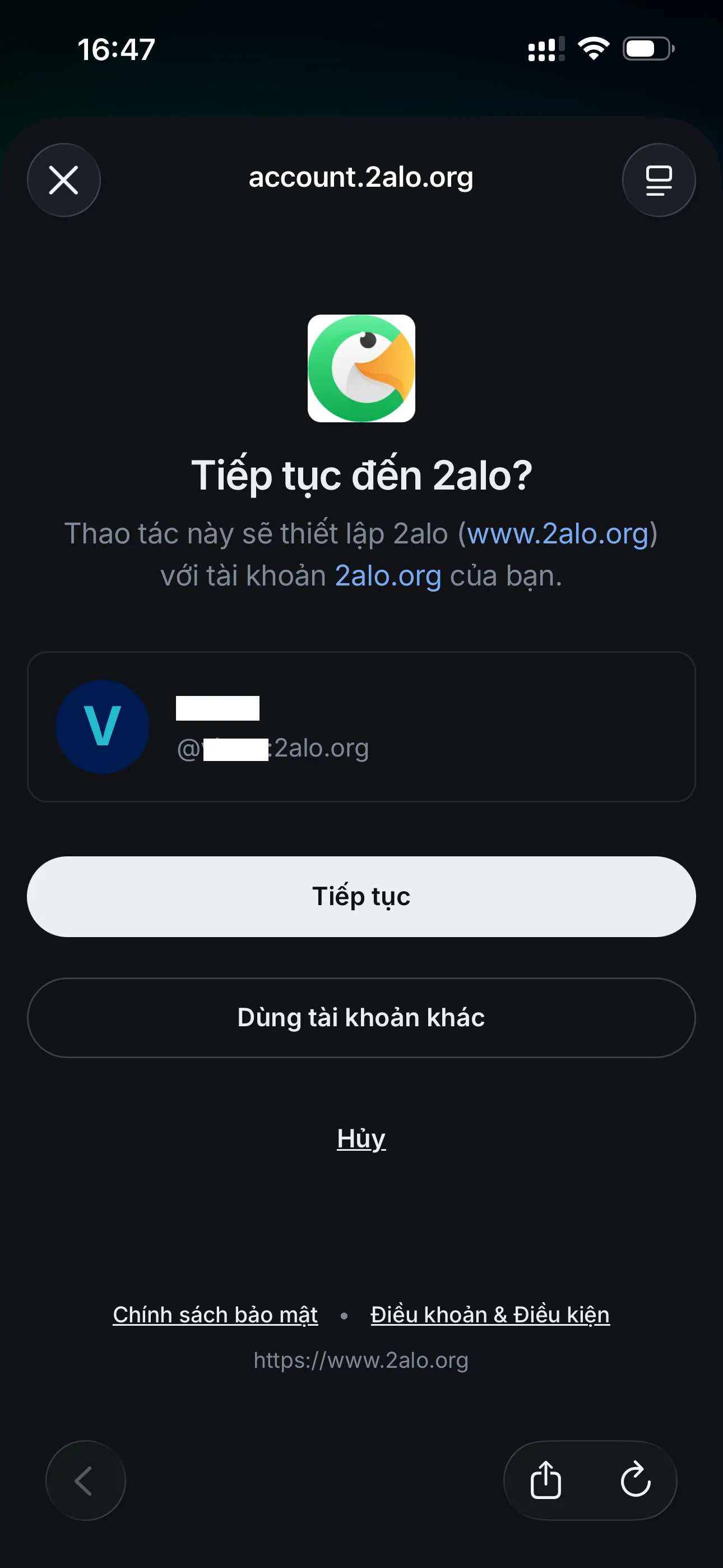
When asked to allow using account.2alo.org for sign-in, tap "Continue".
2. Choose an account to sign in
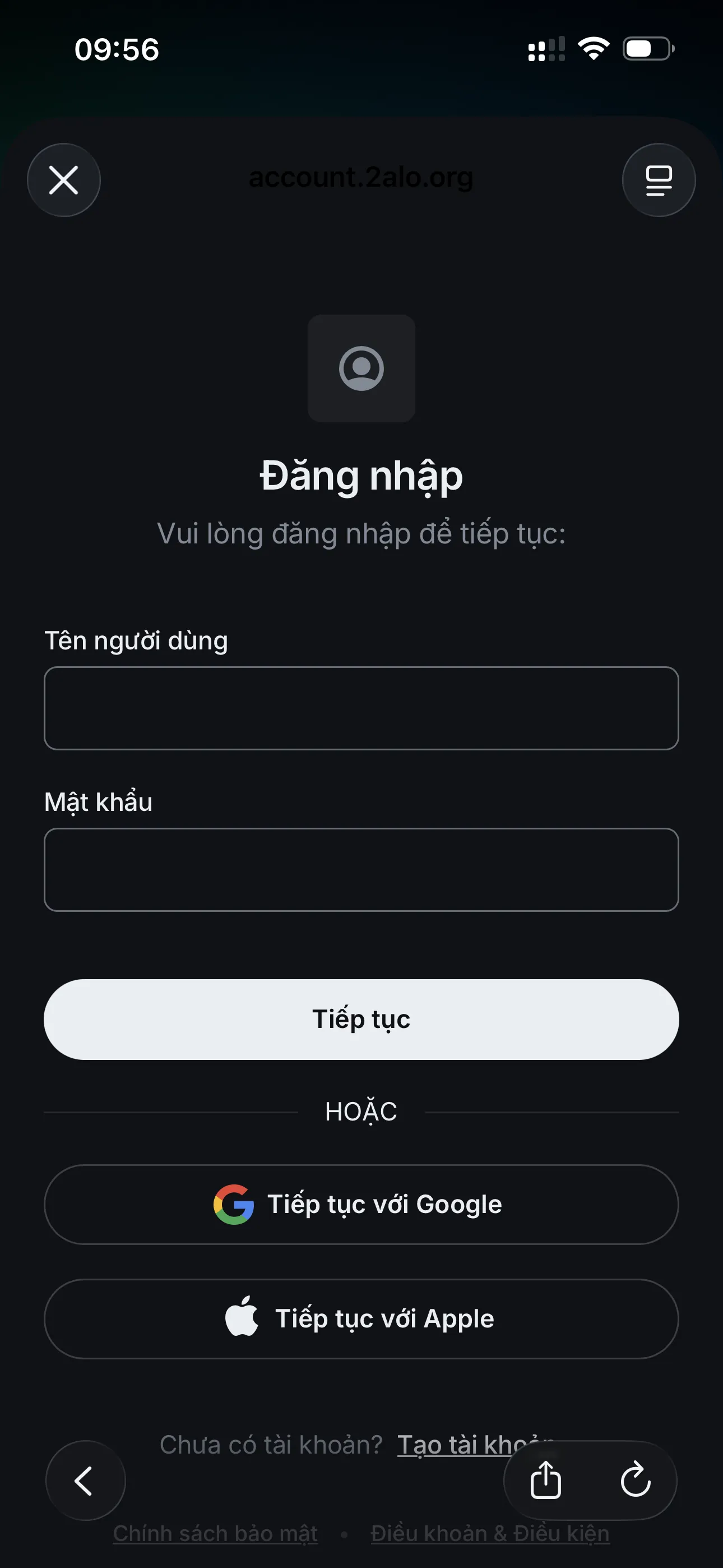
On the account.2alo.org sign-in page, there are two cases:
2.1. Case 1: No saved sign-in info
Enter your username and password, or sign in with Google/Apple.
2.2. Case 2: Saved account on this device
The app shows a saved account. Tap "Continue" to sign in with that account, or choose "Use another account" to return to Case 1.
3. Verify your identity (Important)
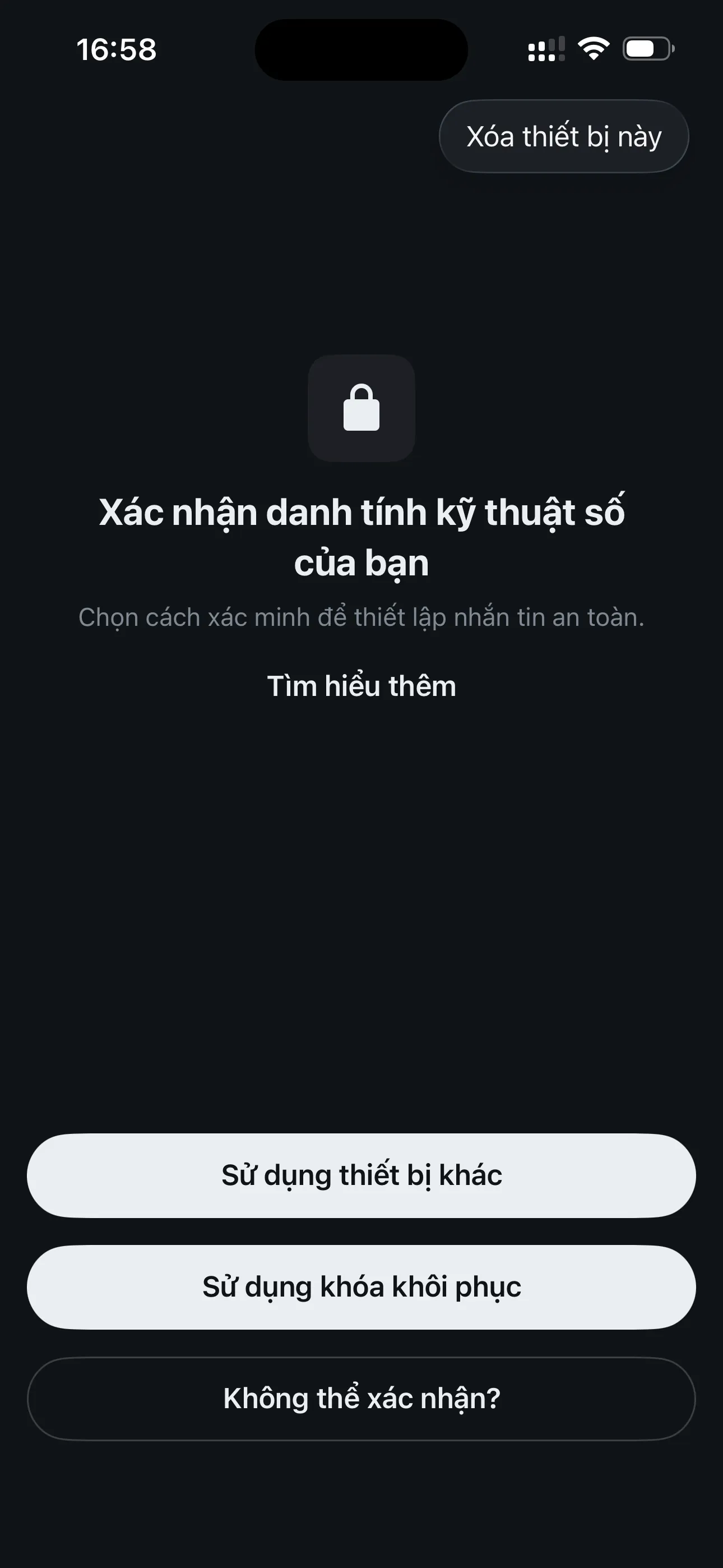
To set up end-to-end encryption and restore messages, 2alo may ask you to verify your identity. You will see the following methods:
- Option 1 - "Use another device": Use another device that is already signed in to this account to confirm.
- Option 2 - "Use Recovery Key": Enter the Recovery Key you saved in step 2 of the Getting Started guide.
- Option 3 - "Can't verify?": Forgot your Recovery Key, reset it. Note: after resetting, you will not be able to read old messages.
Option 1: Verify with another device
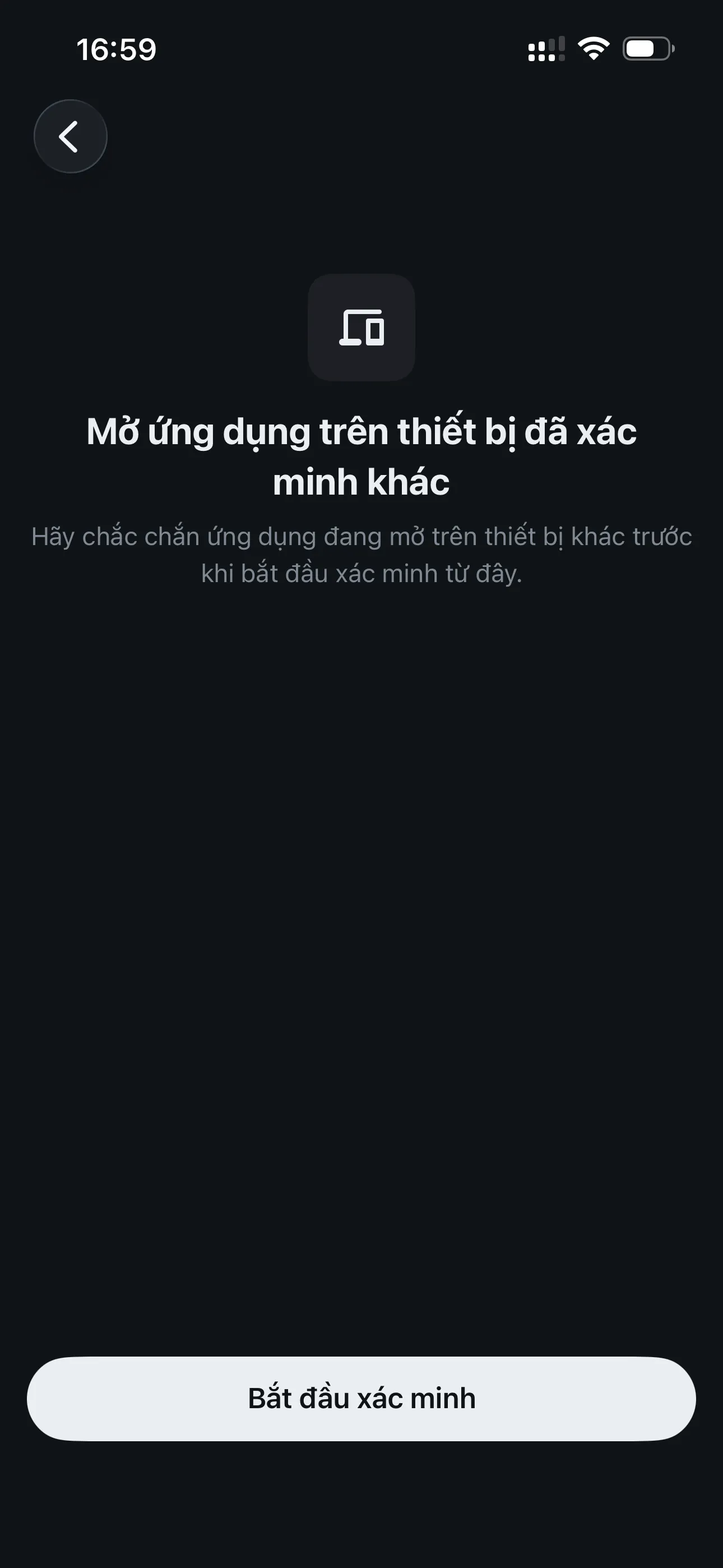
Use another signed-in device to confirm, then compare emojis on both devices.
1. Open on the other device
On the new device, choose "Use another device" and follow the instructions to start verification.
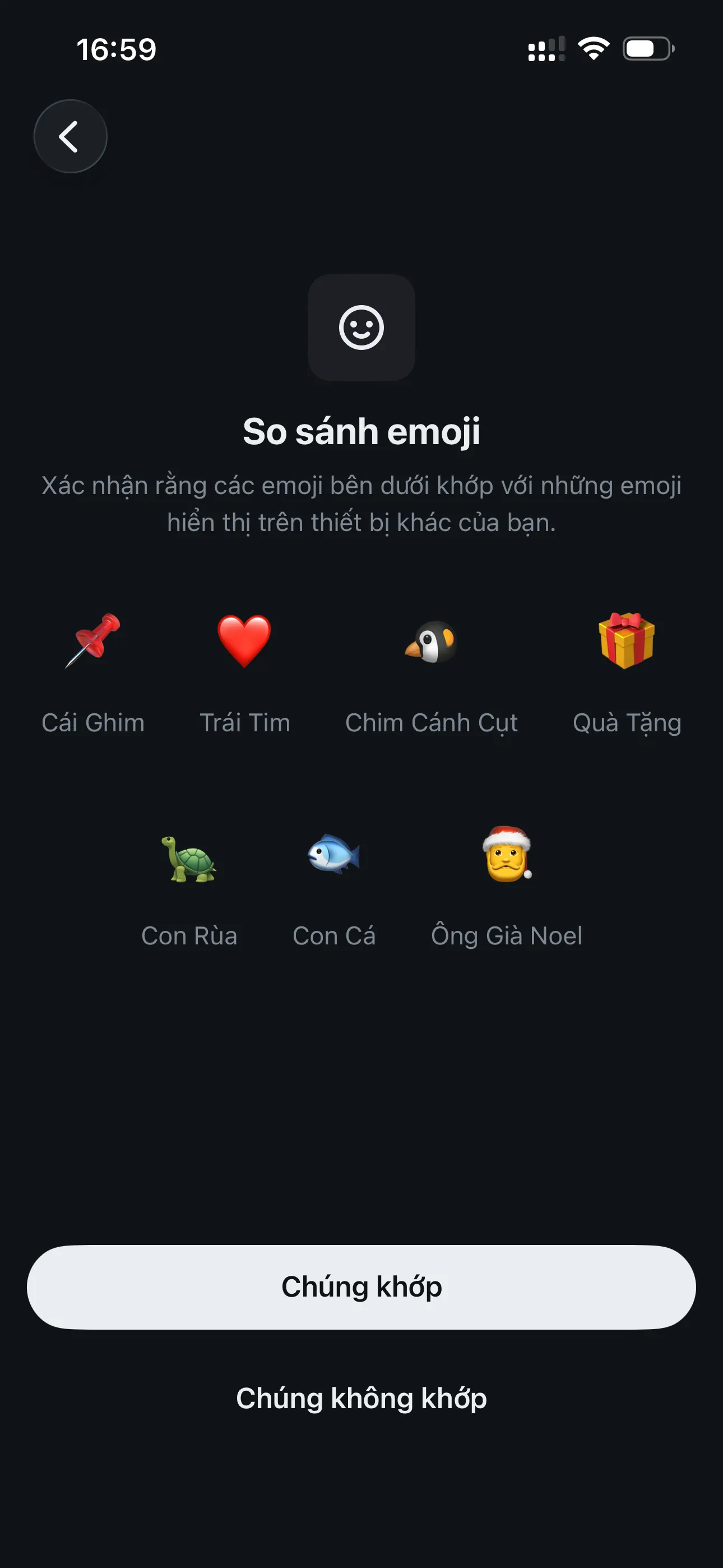
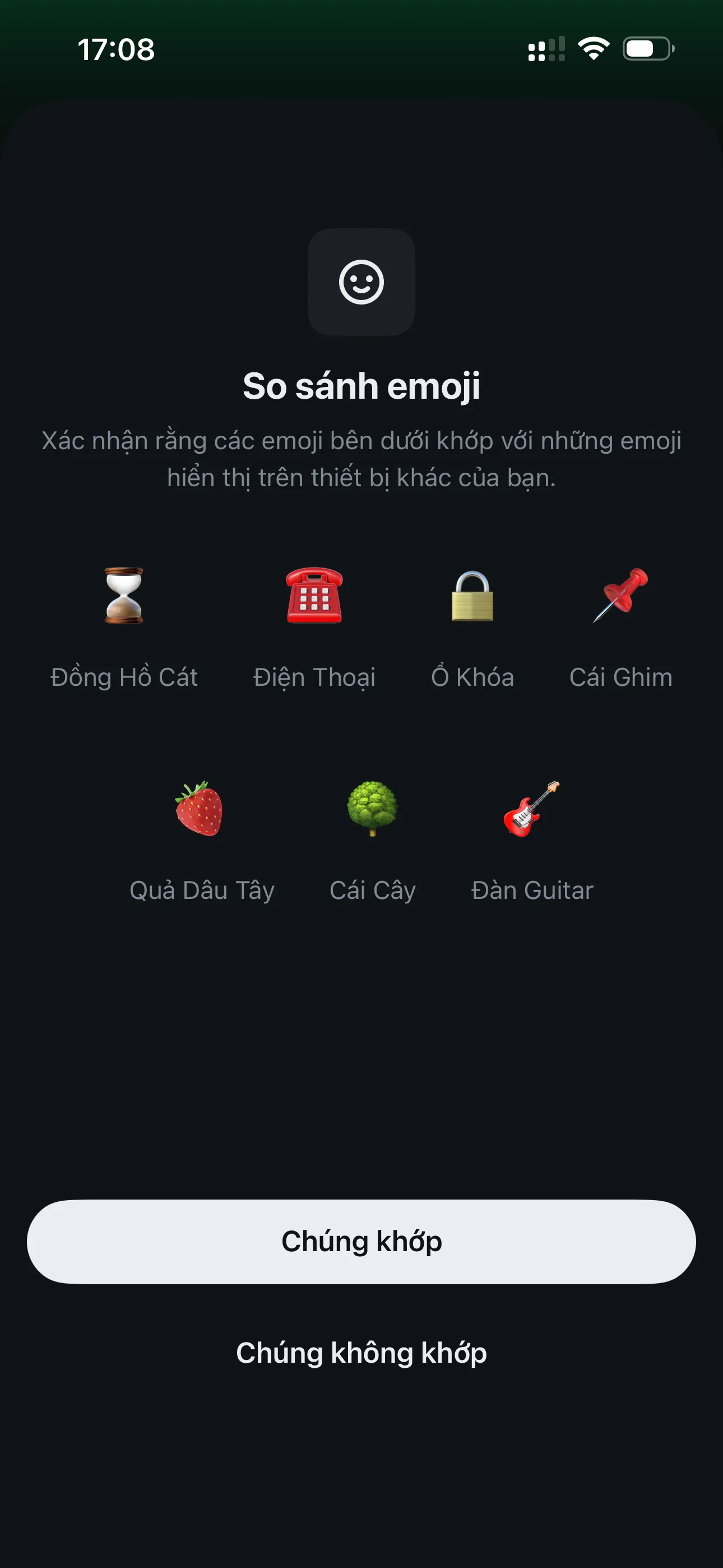
2. Compare emojis
Both devices show a list of emojis. If they match, tap "They match" to complete verification.
Option 2: Enter Recovery Key
Use the Recovery Key you saved during setup to sign in and restore messages.
1. Enter Recovery Key
Enter your Recovery Key, then tap "Confirm" to continue signing in.

Option 3: Reset Recovery Key
Only use this if you have no other device to verify with and you have lost your Recovery Key.
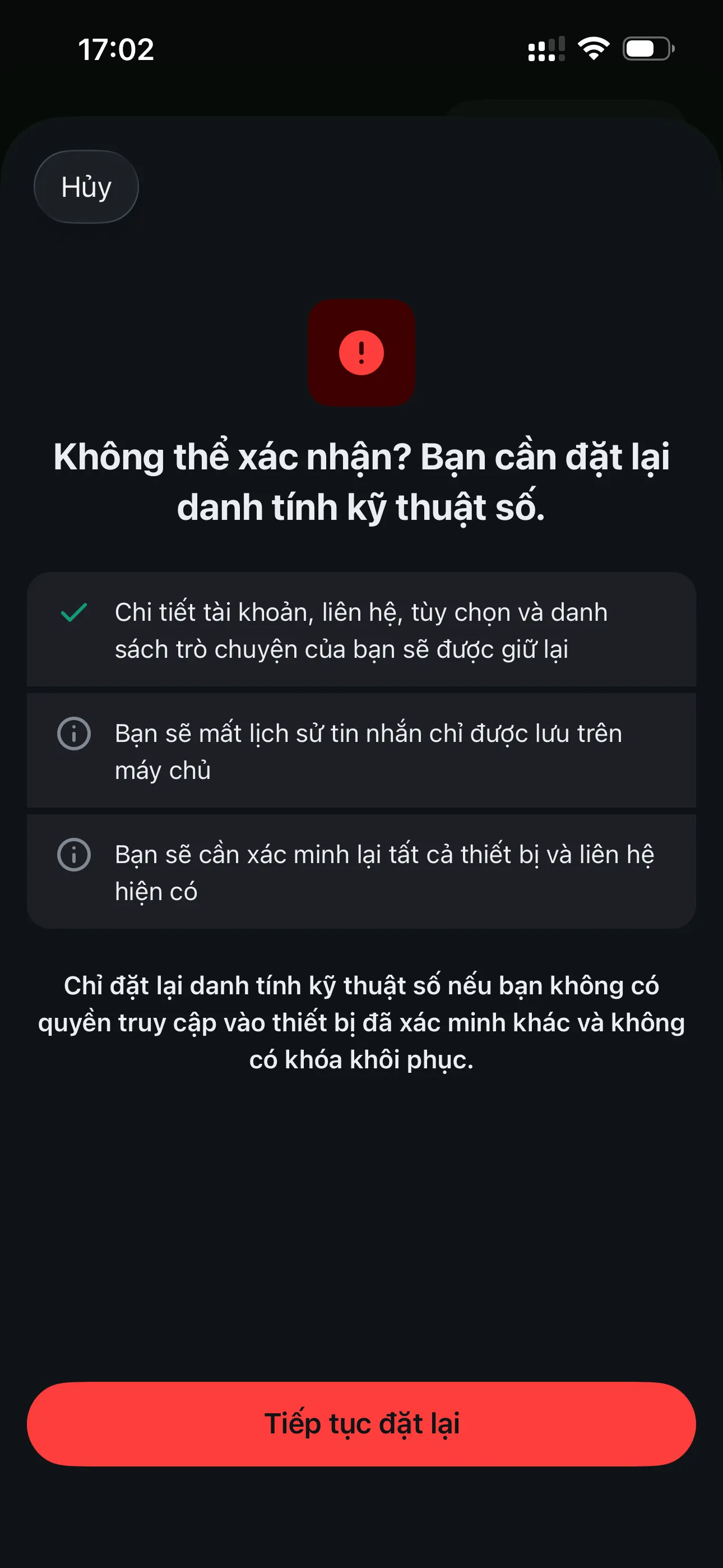
1. Review reset warning
You will see a warning screen with a "Continue reset" button.
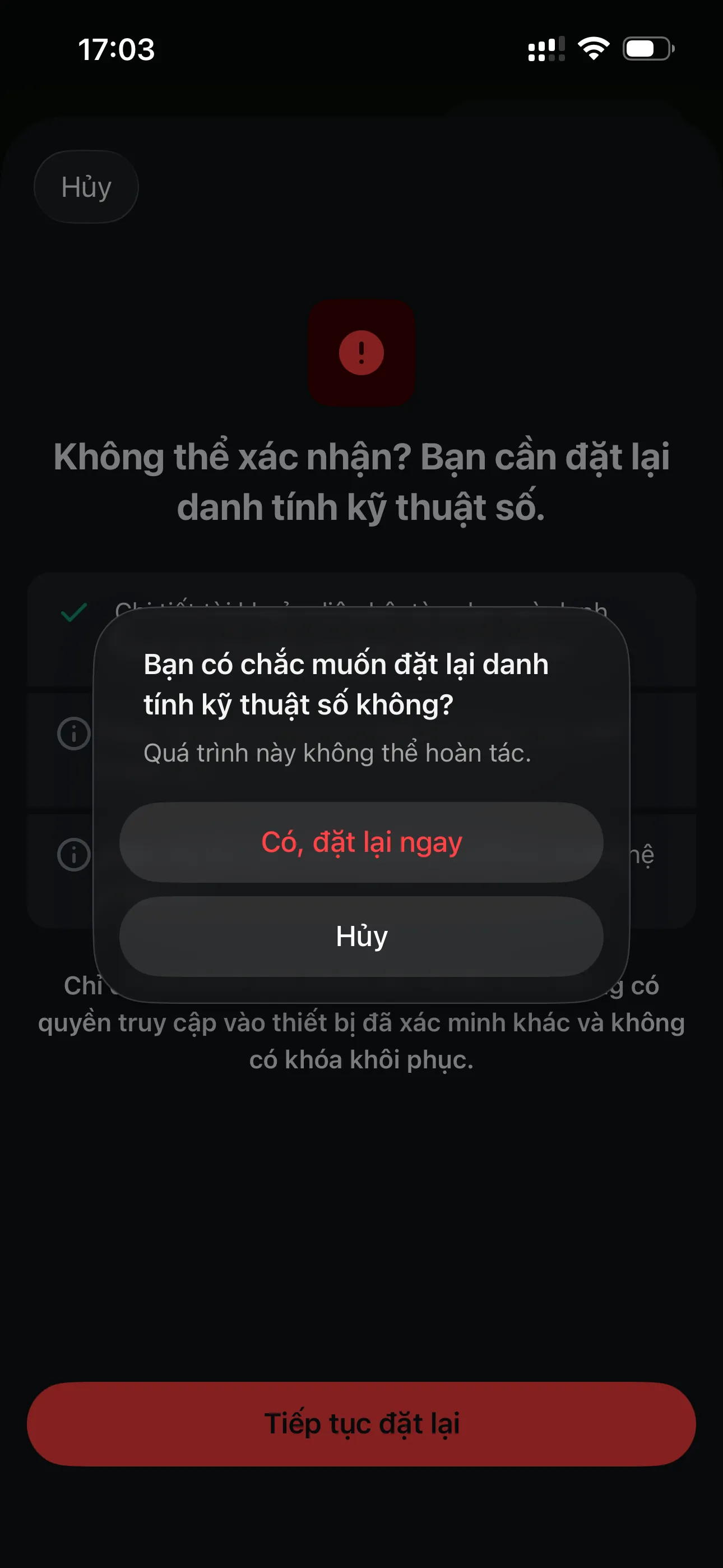
2. Confirm reset
Confirm that you want to reset your digital identity. This cannot be undone.
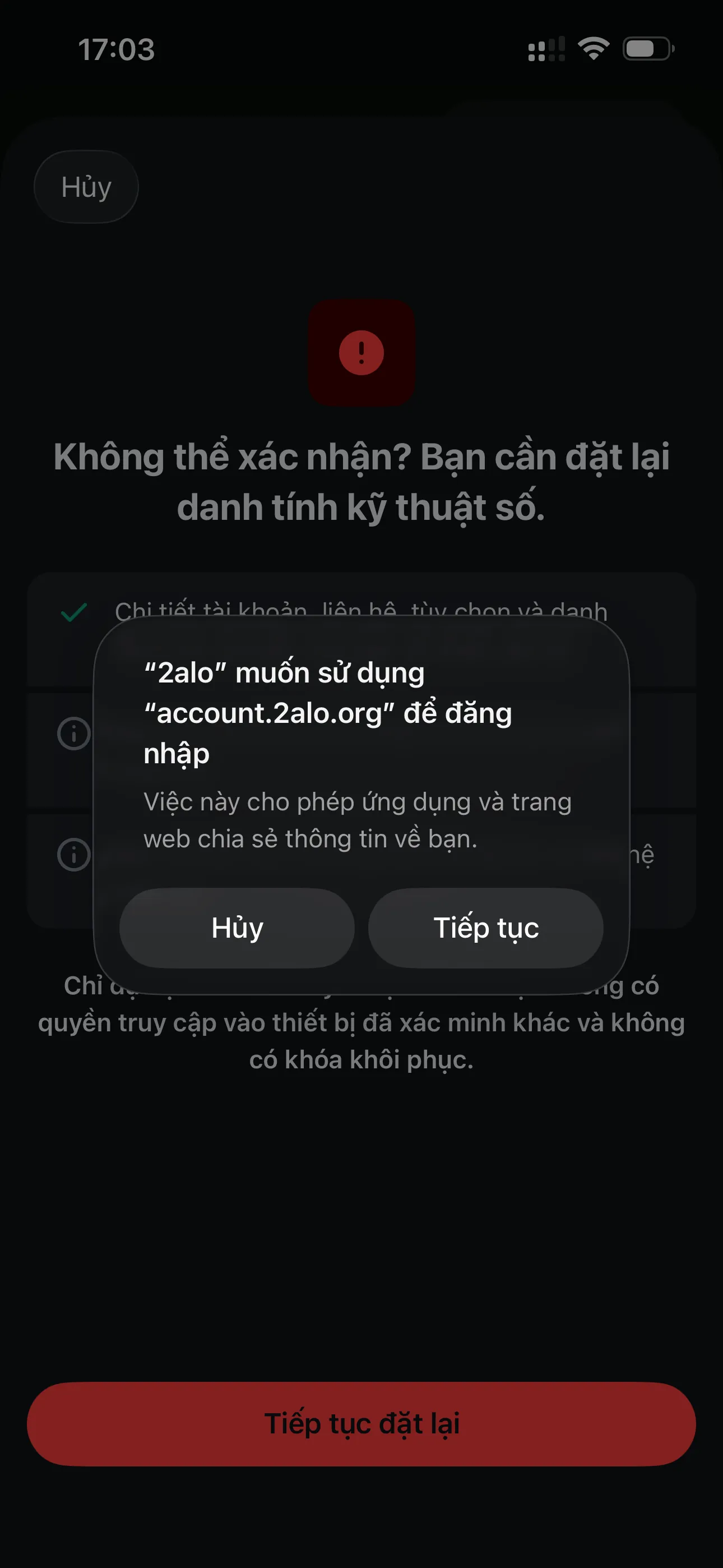
3. Allow sign-in (if prompted)
If you see a permission popup to use account.2alo.org, tap "Continue".
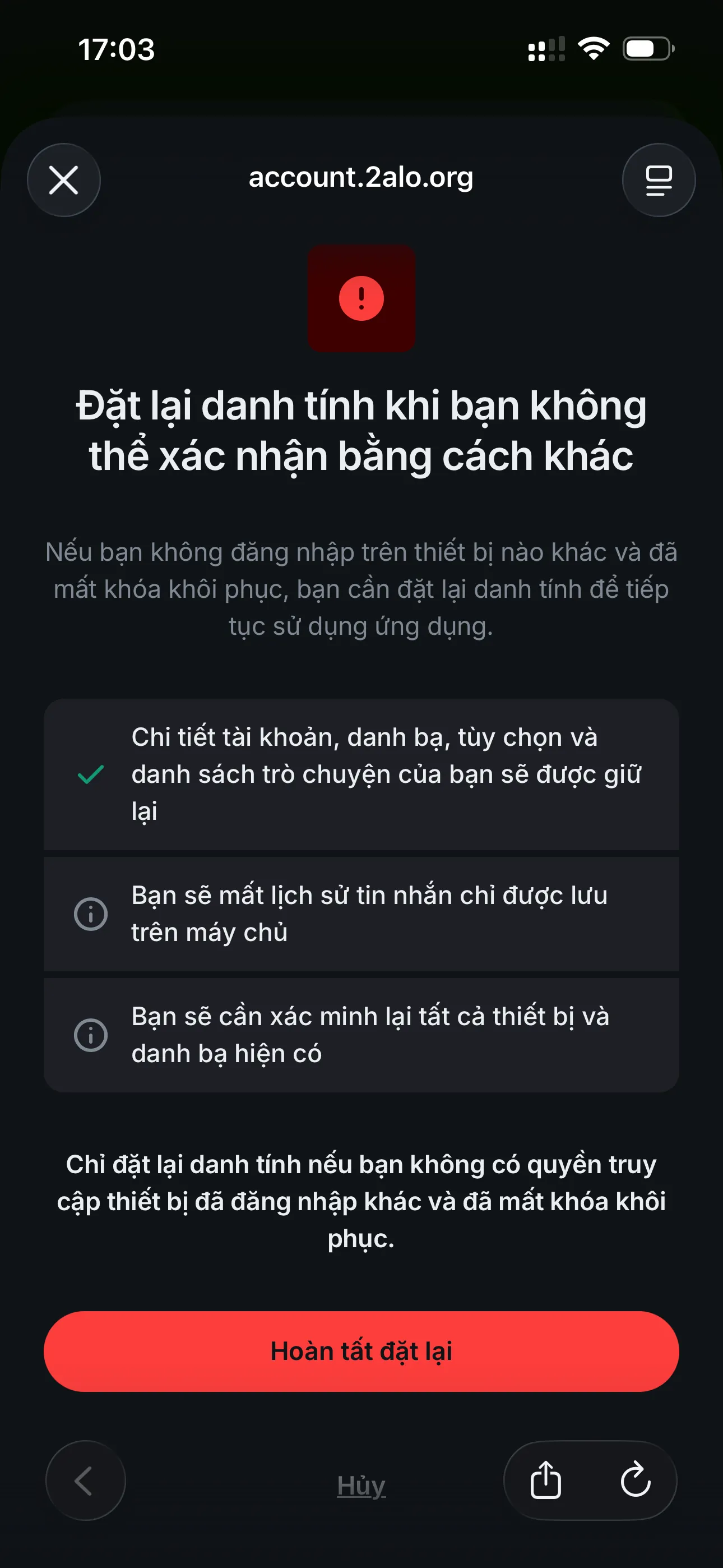
4. Finish the reset
Follow the on-screen steps to complete the reset process.
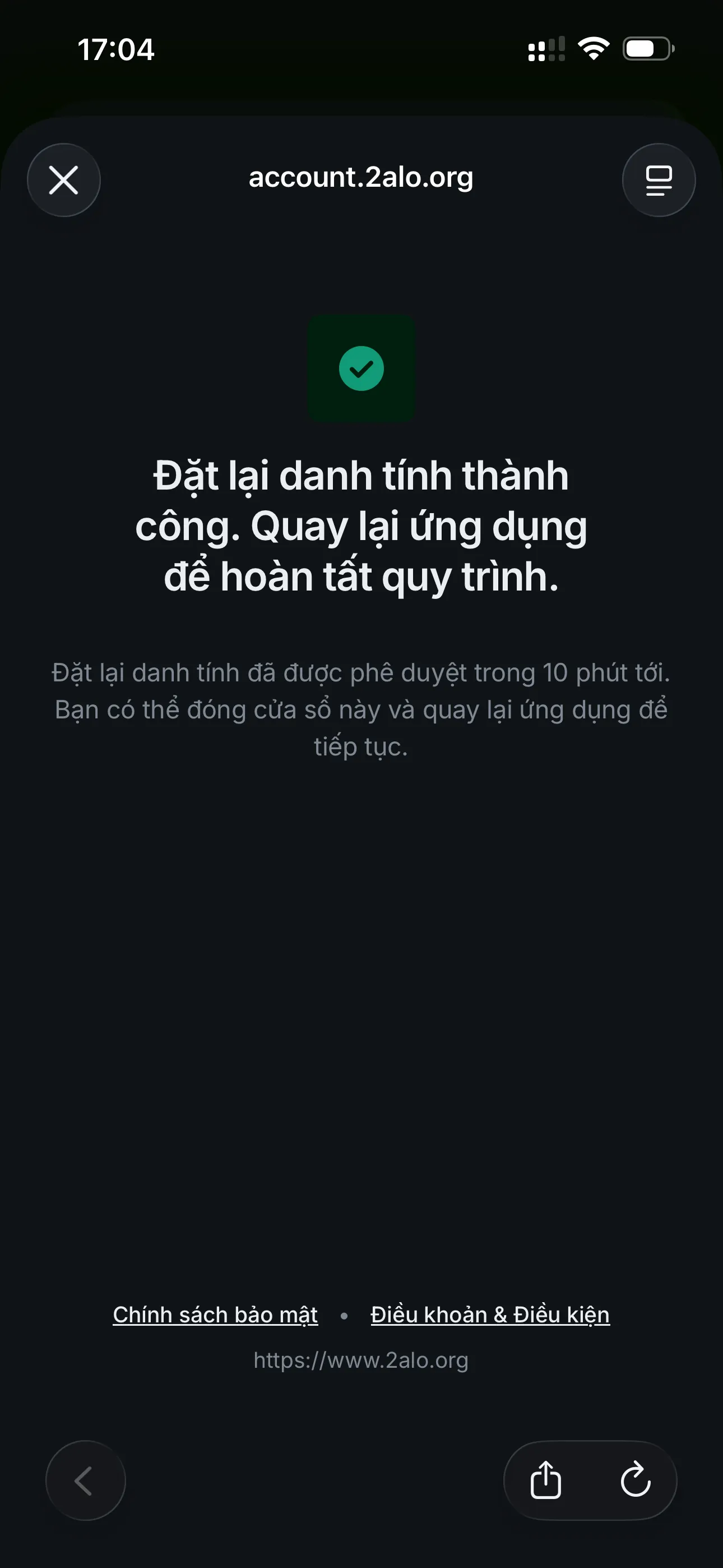
5. Reset successful
When the reset succeeds, return to the app to complete the sign-in flow.
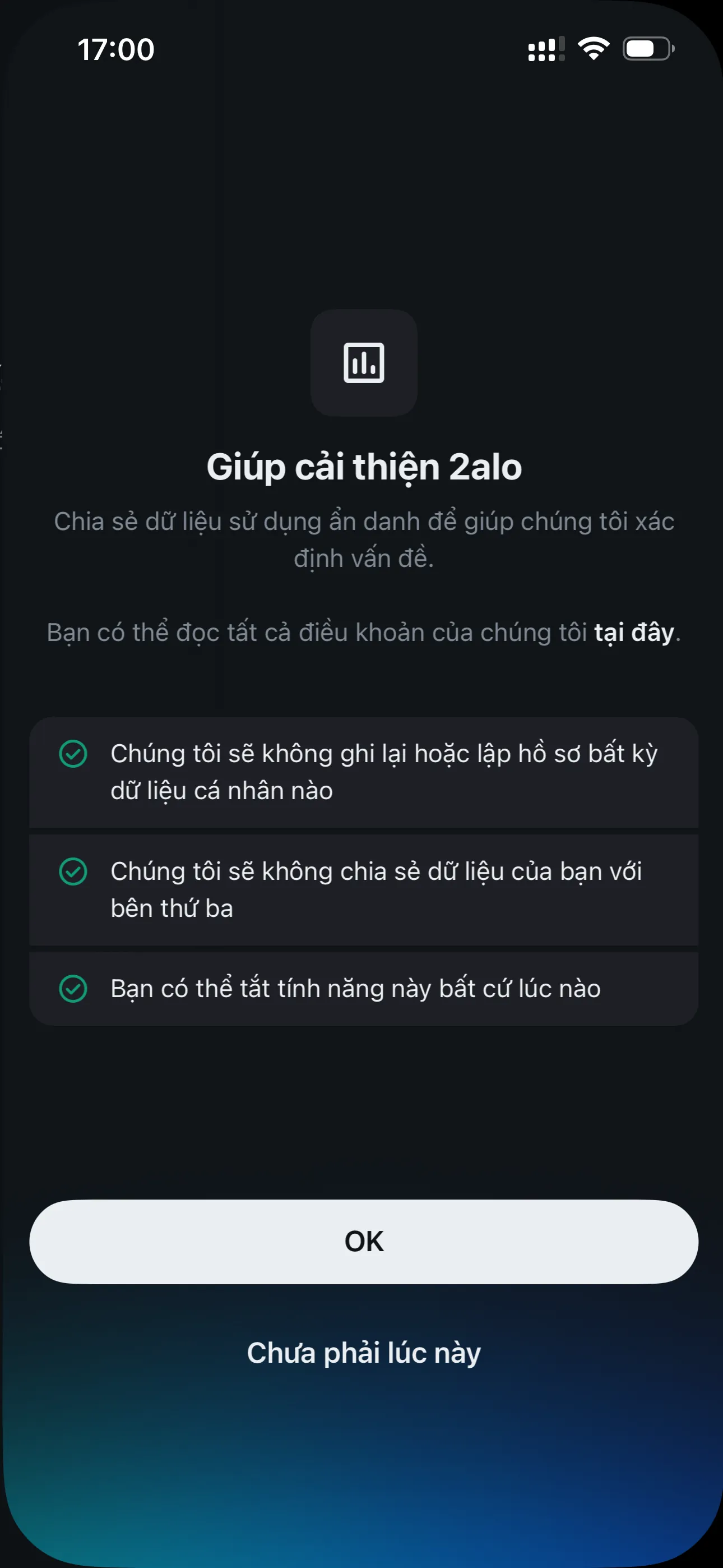
4. Data sharing (after sign-in)
2alo may ask if you want to share anonymous usage data to improve the app. Note: 2alo does not collect sensitive data and does not read your messages.
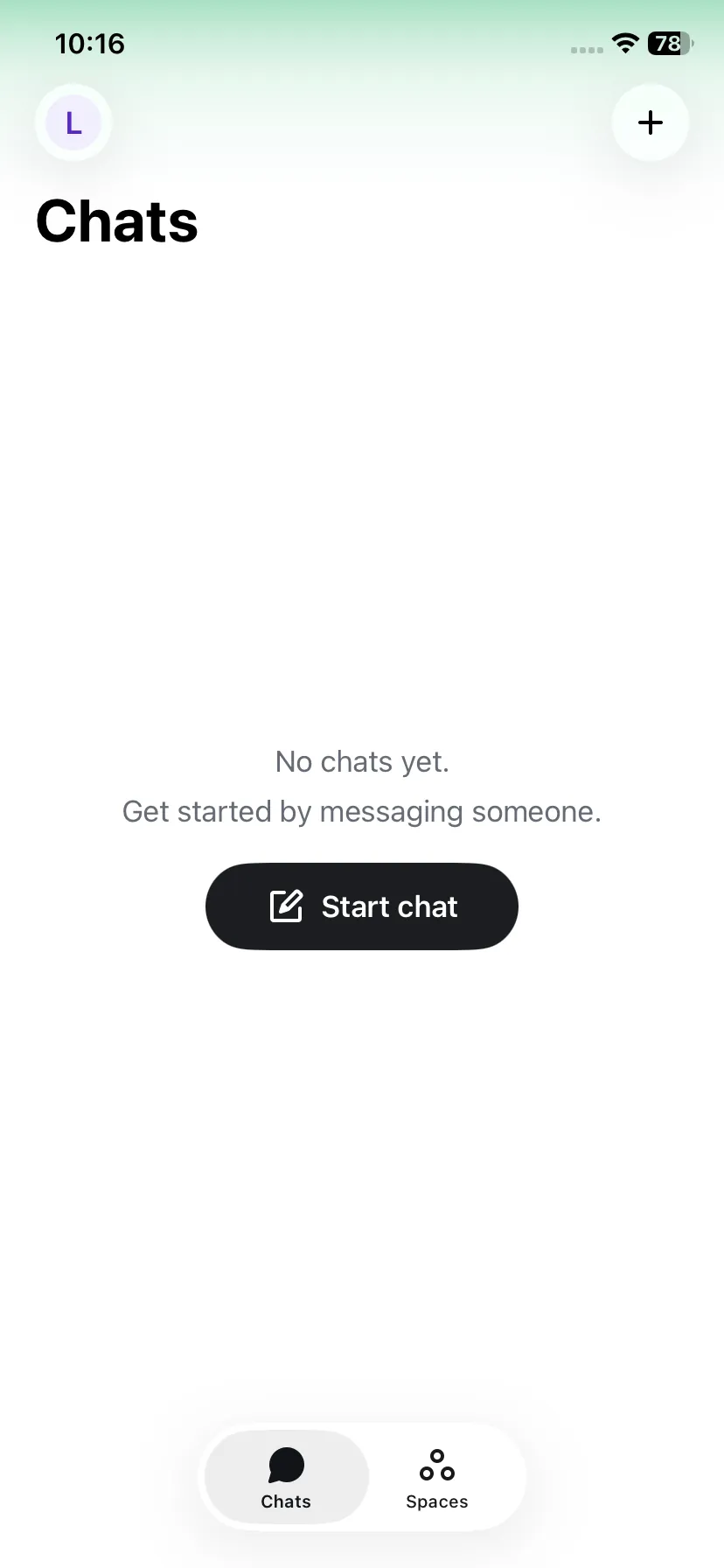
5. Done and start chatting
After completing sign-in, you will arrive at the Chats screen and can start messaging.
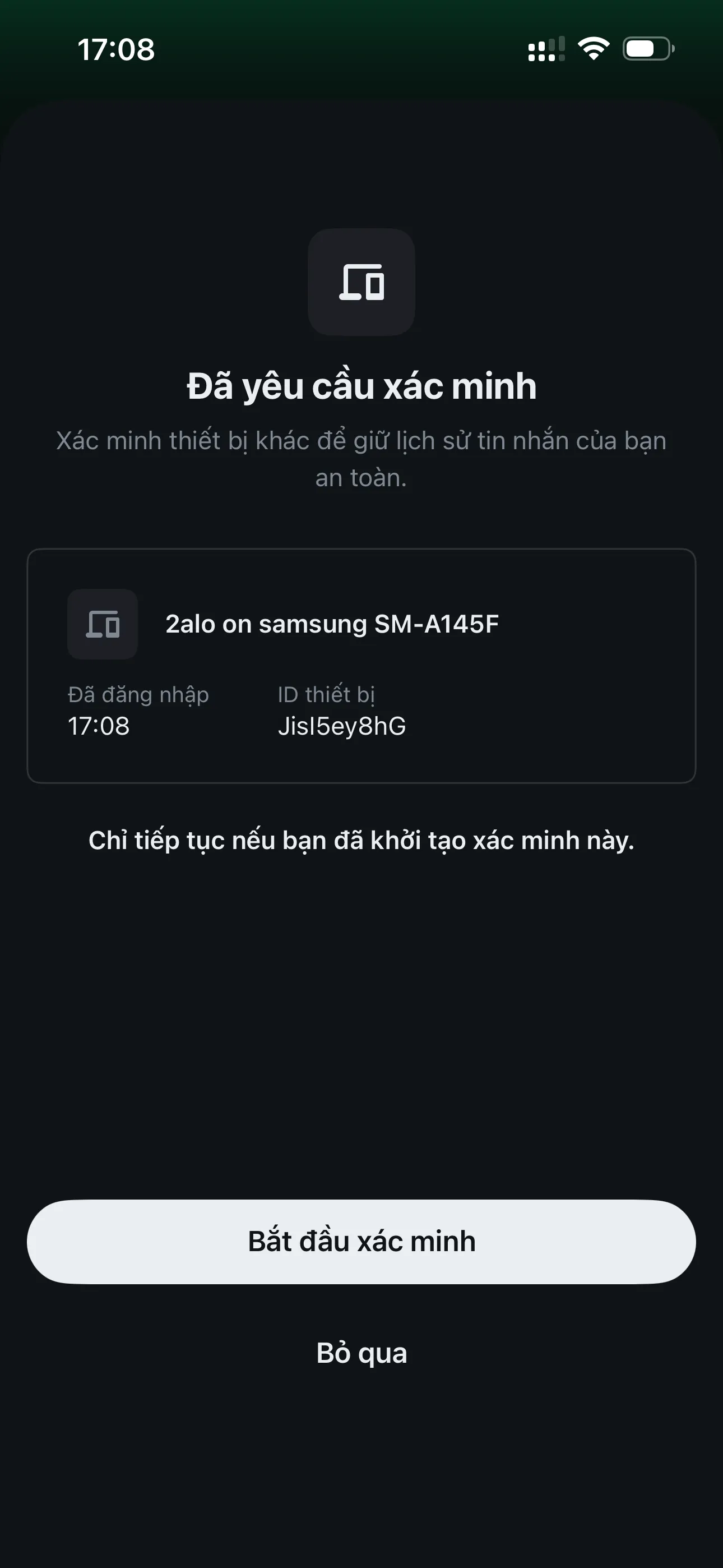
Bonus: What you see on the other device (Option 1)
If you verify with Option 1, this is what shows on the already-signed-in device.
1. Receive a verification request
The signed-in device receives a verification request from your new device.
2. Compare emojis on the other device
The other device also shows emojis for comparison. If they match, tap "They match".